Smart TV quick start
Smart TVs run web apps: Samsung Tizen (2020+, Tizen 5.5), LG webOS (2020+, webOS 5), Hisense VIDAA, Philips Titan OS and HbbTV terminals all host an HTML5 application in a browser engine frozen at manufacture. OGPlayer’s web SDK ships a bundle for exactly those engines and a remote-control chrome — the same API you already use on the desktop web.
What changes on a TV
Section titled “What changes on a TV”| Desktop / mobile web | Smart TV | |
|---|---|---|
| Bundle | ogplayer | ogplayer/tv (dist/ogplayer.tv.js, dist/ogplayer.tv.global.js) — same API, compiled for Chromium 68/69 |
| Input | pointer / touch | <og-player input="remote"> — D-pad focus, OK, Back, media keys |
| Buffers | hls.js defaults | new OGPlayer({ platformProfile: "tv" }) — bounded back-buffer for 1 GB set-top SoCs |
| Fullscreen button | shown | not offered — a TV app is always full-screen |
| Volume button | shown | not offered — the remote owns the TV’s volume |
Nothing switches on by itself: without the attribute and the option the player behaves exactly as it does on a laptop.
1 · Load the TV bundle
Section titled “1 · Load the TV bundle”TV packages are self-contained (no node_modules, no import maps at
runtime), so copy the global build into your app and load it with a classic
script tag:
<script src="./vendor/ogplayer.tv.global.js"></script>With a bundler, import the subpath instead:
import { OGPlayer } from "ogplayer/tv";The TV bundle leaves out the vertical feed and is built for a Chromium 68 syntax and API ceiling; everything else is identical to the main bundle.
DASH. The TV bundle plays MPEG-DASH (VOD, live and DVR, clear or with
Widevine / PlayReady) through dash.js, like the main bundle. A packaged app
that plays DASH items copies the DASH engine from the same dist/ folder and
loads it with a second tag:
<script src="./vendor/ogplayer.tv.global.js"></script><script src="./vendor/ogplayer.dash.global.js"></script>With a bundler, ogplayer/tv loads its own DASH chunk on the first DASH item
— nothing to add. Apps that play only HLS change nothing and ship without the
file.
2 · The remote-control chrome
Section titled “2 · The remote-control chrome”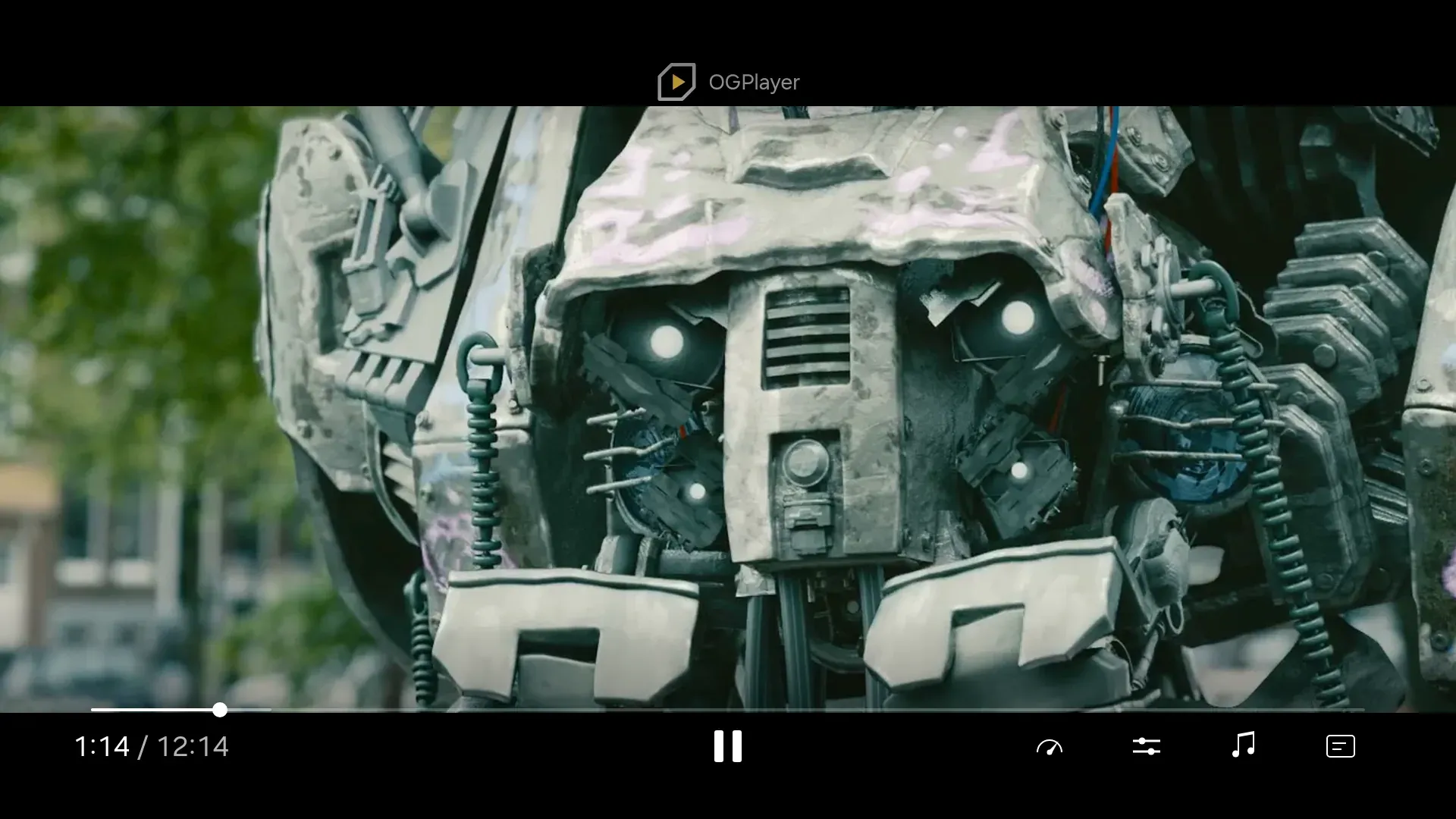
<og-player id="pl" input="remote" style="width:100%;height:100%"></og-player><script> var player = new OGPlayerSDK.OGPlayer({ licenseKey: "OGP2…", platformProfile: "tv", }); var el = document.getElementById("pl"); el.player = player; player.load({ url: "https://example.com/stream.m3u8", title: "My movie" }); el.focus(); // put the remote in charge of the player</script>input="remote" adds key handling on top of the pointer chrome (LG’s
Magic Remote is a pointer and keeps working), sizes the chrome for ten-foot
viewing and drops the fullscreen and volume buttons (the remote owns the
volume). What the keys do:
| Key | Chrome hidden | Chrome visible |
|---|---|---|
| Up / Down / OK | show the chrome, focus returns to the last control | move between rows / activate |
| Left / Right | show the chrome on the scrub bar and start seeking | on play/pause or the scrub bar: seek; in the button row: move |
| Play/Pause, Play, Pause, Stop | act directly, flash the chrome | same |
| Rewind / Fast-forward | seek in triple steps | same |
| Next / Previous track | next playlist item | same |
| Back | not consumed — the element fires og-back | close menu → cancel a pending seek → hide the chrome |
| Red / Green / Yellow / Blue | never consumed — yours | yours |
A TV chrome has no seek buttons: the transport is play/pause alone, and Left/Right seek from it. Seeking with the D-pad: every Left/Right press moves a pending target by the seek increment (10 s by default), with the storyboard preview above the bar; rapid presses accelerate (1×, 3×, 6×, 12×), and the seek commits after 700 ms of silence or on OK. Back cancels it.
Back and your app
Section titled “Back and your app”Back is only consumed while the chrome has something to dismiss. With the
chrome down, the key bubbles untouched and the element dispatches a
composed og-back event — the moment to leave your player screen:
el.addEventListener("og-back", function () { showCatalogue(); });Consumed keys call preventDefault(), never stopPropagation(), so a
document-level handler can also branch on event.defaultPrevented.
Programmatic el.focus() lands on the player’s stage in remote mode, so the
very next key reaches the chrome. The player never steals focus on its own:
it only moves focus between its controls once focus is already inside it.
While the chrome is hidden, focus rests on the stage — an invisible control
can never receive OK.
Localisation
Section titled “Localisation”The remote chrome takes its words from the same config.strings map as the
web chrome — control and screen-reader labels, menu rows, the skip countdown,
the error overlay — and <og-player input="remote" lang="nl"> names
language-coded tracks in that language. See
Localisation.
3 · Watch the player’s callbacks on the set
Section titled “3 · Watch the player’s callbacks on the set”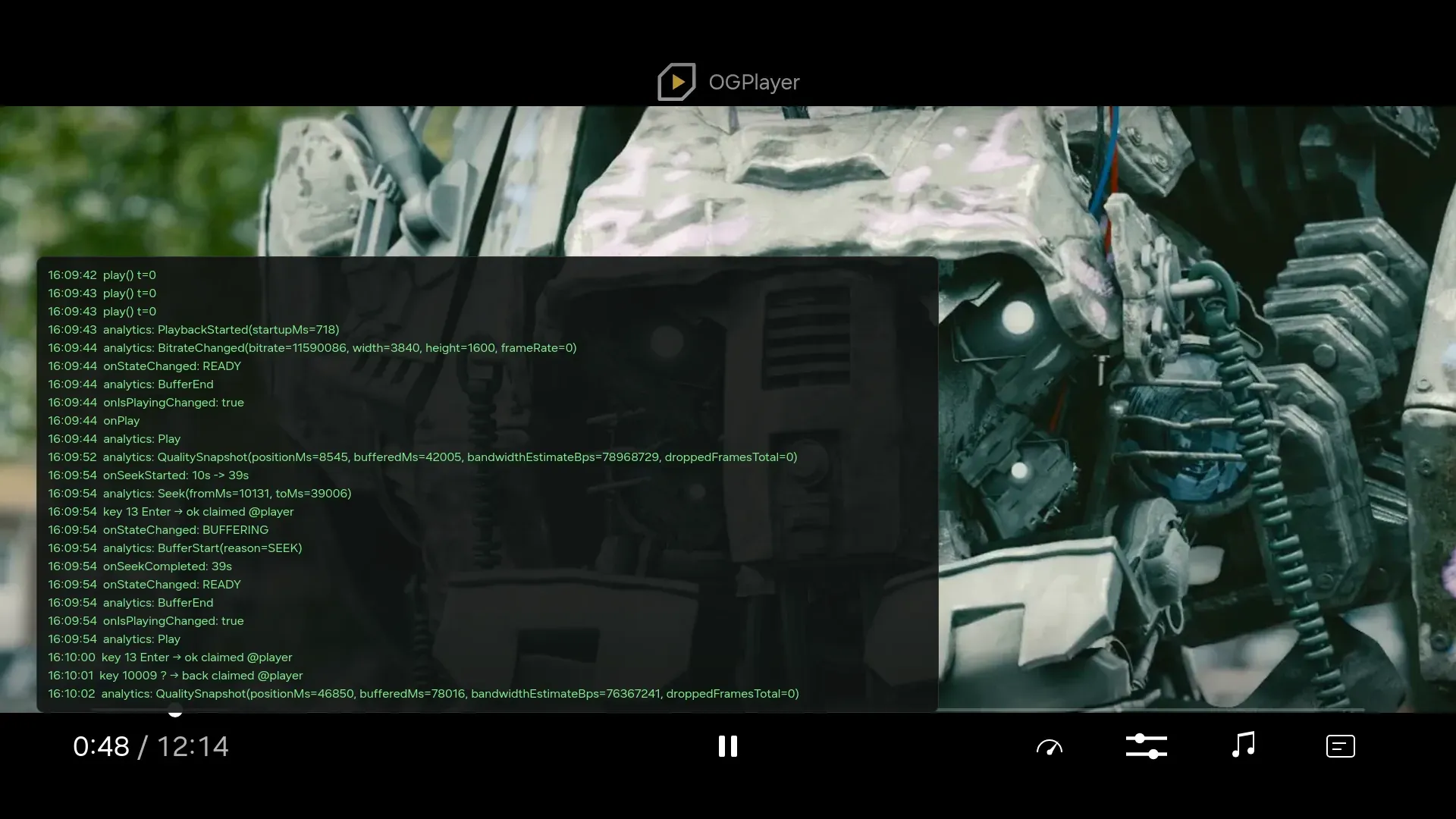
Every SDK callback the demo shell receives — state changes, play, pause, seeks, live-edge changes, DRM renewals, ad events, errors — goes into an on-screen event log with a timestamp. Press the Yellow colour key to show or hide it, on the menu or over the player; the SDK never consumes colour keys, so they are always yours. The overlay shows the last lines that fit and keeps the last two hundred.
That is the first thing to look at when something behaves differently on a set than in a browser: a stall prints its buffering reason, a key that seems ignored prints — or fails to print — the callback it should have produced, an error prints its code. When you report an issue, a photo of the log next to the description saves a round trip.
The log is plain player.addListener({ ... }), the same callbacks your own
app receives, so the pattern is a few lines of the demo’s shared/app.js.
4 · The TV buffer profile
Section titled “4 · The TV buffer profile”platformProfile: "tv" layers a set of hls.js defaults under your own
hlsConfig (any key can still be overridden):
backBufferLength: 30— the default keeps the whole session in the SourceBuffer, and 2020-era TVs stall after 20–40 minutes when the engine trims it in one go.- Forward appetite bounded to 30 s (60 s max, 30 MB) for the 4K ladders.
lowLatencyModeandprogressiveoff, web worker on, software AES on.capLevelToPlayerSize: false— TVs report a 1920×1080 CSS viewport at device-pixel-ratio 1 even on 4K and 8K panels; capping would pin exactly those TVs to 1080p. Set it yourself if you want the cap.
DASH items get the same profile in dash.js terms — the same forward and back-buffer bounds, no viewport cap, live played at the regular delay — so both formats stay inside the same memory budget.
Widevine and PlayReady work through hls.js’s EME path with fMP4 (CMAF)
segments; TS segments cannot be decrypted this way. DASH items take the same
DrmConfig through dash.js. Robustness is left to
the CDM’s default (Widevine L1 / PlayReady SL3000 where the hardware has
them); pass hlsConfig.drmSystemOptions if a studio contract requires an
explicit level.
5 · Packaging notes
Section titled “5 · Packaging notes”Samsung Tizen — config.xml needs required_version="5.5", the
internet and tv.inputdevice privileges and hwkey-event="enable"
(Back arrives as keyCode 10009). Media and colour keys are delivered only
after tizen.tvinputdevice.registerKeyBatch(...); the SDK exports the list
as TIZEN_REGISTER_KEYS and never calls platform APIs itself.
LG webOS — set "disableBackHistoryAPI": true in appinfo.json so Back
reaches the page as keyCode 461 instead of navigating history; media keys
need no registration.
All platforms — the app’s origin is file://, so license servers and
CDNs receive Origin: null; allow it. Keep an older desktop Chrome around
for remote inspection: the TV’s Chromium is years old and a current
DevTools may not attach.
The ogplayer-tv-demos repository ships the same remote-control shell as ready-to-package Tizen and webOS apps, with the build and install steps for each brand.